News
Our top tips for students working in Cadmus



Share with colleagues
Download the full Case Study
Take an in-depth look at how educators have used Cadmus to better deliver assessments.
Starting an assessment in a new platform can be tricky, especially when students are used to working in different ways. Here at Cadmus, we understand this. That's why we're always striving to make things easier and more enjoyable for students working in the platform. If you're introducing students to Cadmus for the first time, here are a few of our favourite features and tips to help them get the most out of the platform.
1. Spelling and Grammar suggestions with Grammarly
When it comes to producing error-free writing, Grammarly has quickly become the preferred tool for students and professionals. It picks up on simple grammatical errors, like missed capitalisation, as well as more complex suggestions like misplaced words. It's a fantastic upgrade from the default Cadmus spell check. If students already use Grammarly in their browser, they'll see the suggestions automatically when they start writing in Cadmus. Alternatively for new users, they'll just need to add the Grammarly extension to their browser in order to see any suggestions in Cadmus.
⭐️ Find instructions on using Grammarly with Cadmus here
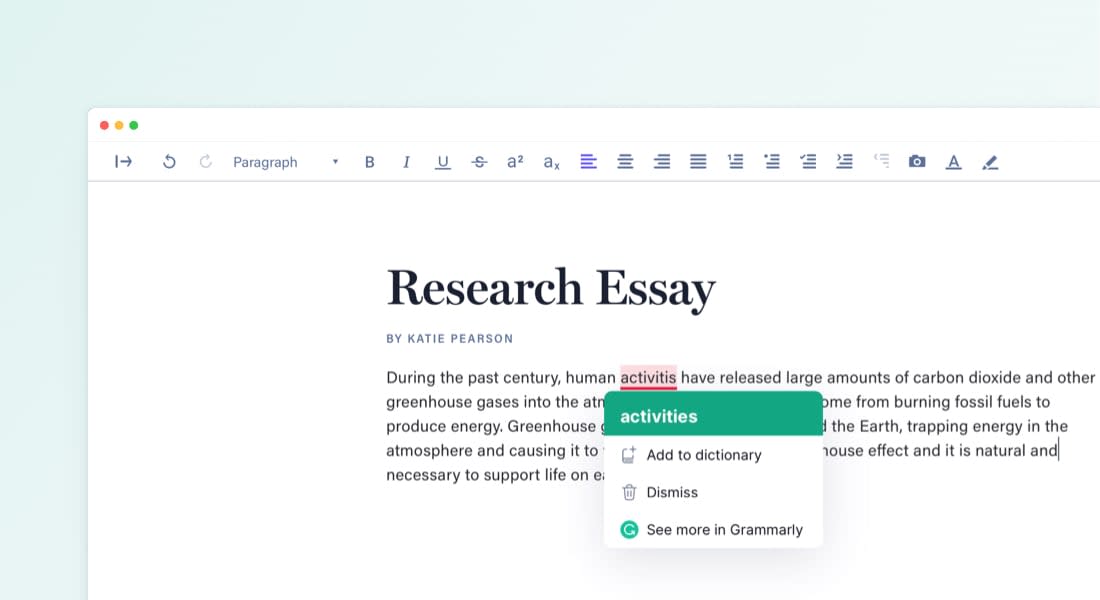 Try Grammarly for advanced spelling and grammar suggestions in Cadmus
2. Quick formatting using keyboard shortcuts
We've all struggled with our hands being unable to keep up with our thoughts during a flash of inspiration while writing. For students looking to save time and create a smooth working rhythm, the keyboard shortcuts available in Cadmus are exactly what they need. Students can switch between heading styles, lists and more with just a few clever keys.
⭐️ You'll find a full list of keyboard shortcuts here
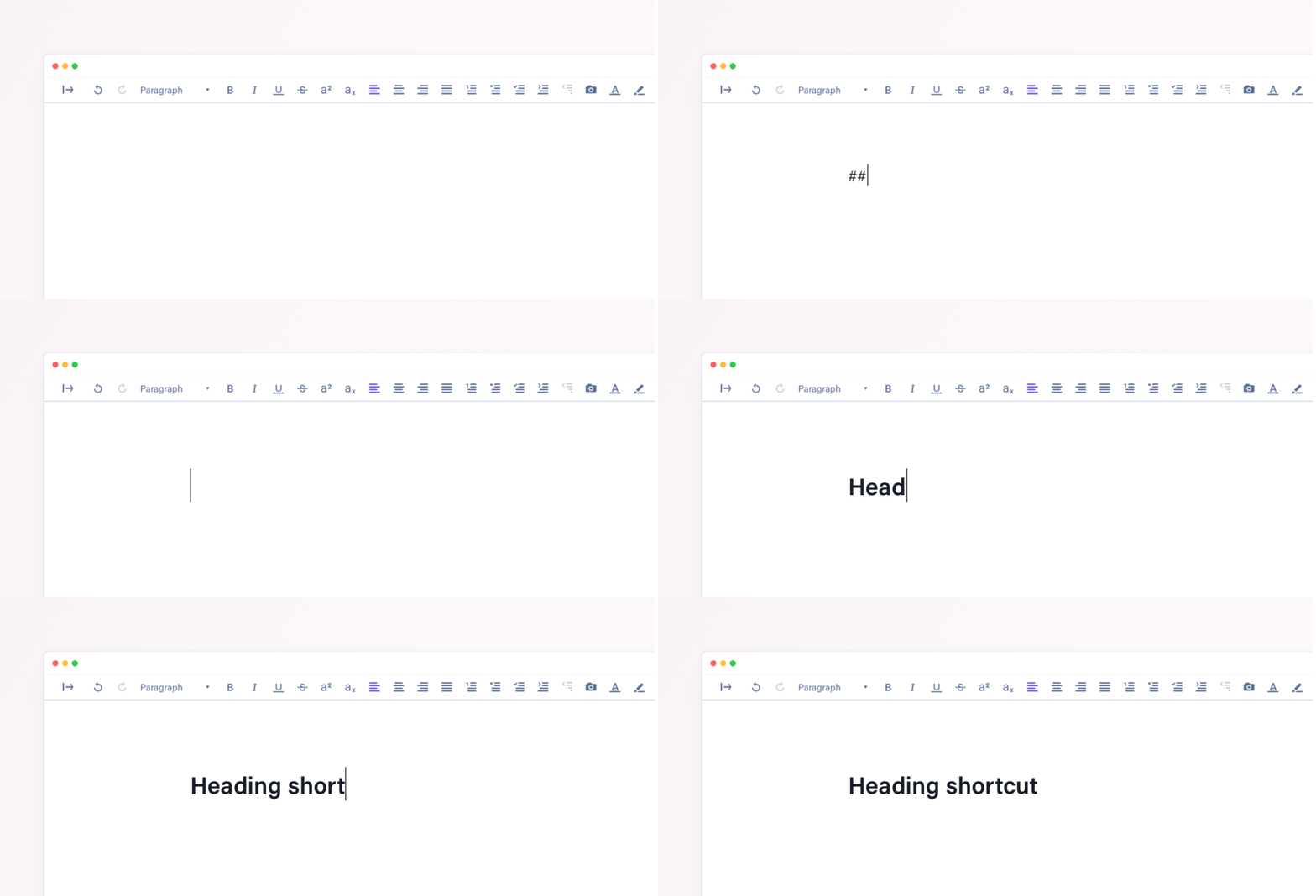
3. Manage word limits with this quick trick
We've seen plenty of assessments that require students to stick to specific word limits for sections or paragraphs, as well as an overall total word count. Here's a neat trick to help students track this in Cadmus: highlight a block of text to see the word count for the section in the top-right corner of the Work space.
⭐️ More info on checking word counts here
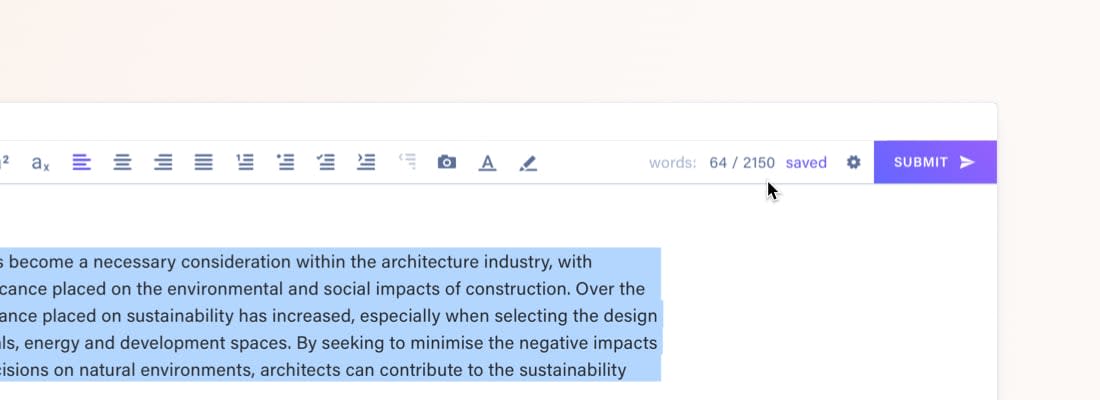
Simply highlight a section of text to check its wordcount
4. Stay organised with Notes
Another great tip for students is to utilise the designated Notes space. Since work in the Notes area doesn't get submitted through Cadmus, students can use it to collect research, plan, and collect their thoughts. For Instructions that include checklists, this is where students can copy them in and check off steps as they go.
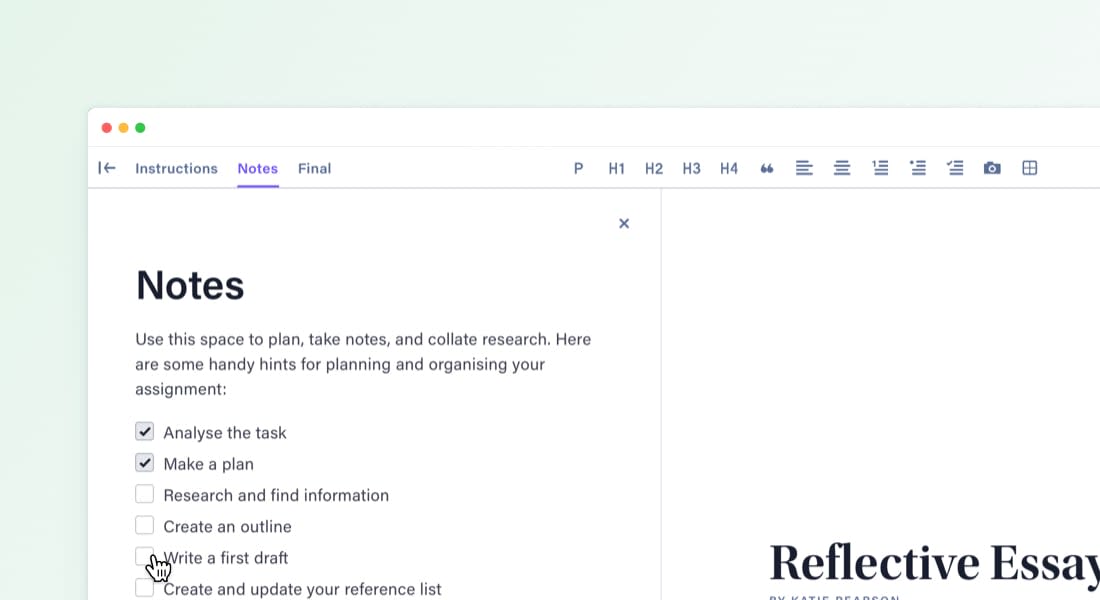
Use the Notes space in Cadmus to create checklists for planning
⭐️ Check out the different parts of the Student Environment in this quick video
5. Make the most of Cadmus Manual
Whether it's referencing help, tips on academic writing, or links to the library database — Cadmus Manual has it covered. This handy guide that lives in the Student Environment is a great place to start for students new to Cadmus. By getting a clear idea of the helpful resources available in-app before beginning, students will be able to refer back to these throughout their assignment.
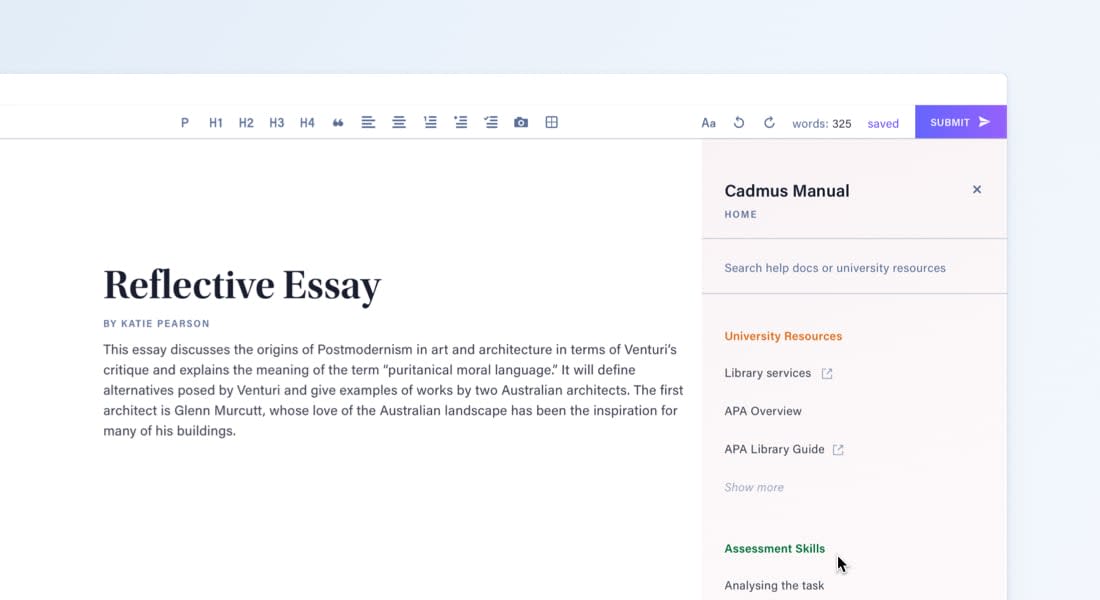
We're constantly adding new features to improve the experience for students. For more resources for students, check out our Getting Started videos and Help Docs.
Category
Product
More News
Load more


Academic Integrity
Assessment Design
Teaching & Learning
Student Success
From bold ideas to real assessment change: What we heard at the Universities Australia Solutions Summit
Last week in Canberra, the Universities Australia Solutions Summit delivered on its promise of big ideas, bold conversations, and real solutions. These are the themes that stood out—from keynote sessions to candid conversations with university leaders across the Summit.
Cadmus
2026-03-02



Assessment Design
Company
Independent ROI analysis: What the findings mean for Universities
Independent analysis by Nous Group confirms a clear link: stronger assessment design improves student outcomes, strengthens retention, and delivers measurable financial return — with a 7.1x average ROI.
2026-02-18



Assessment Design
Leadership
Teaching & Learning
Secure assessment: From policy to practice
This article examines how Australian universities can translate assessment policy intent into sustainable practice amid growing pressures from generative AI, regulatory expectations, and equity considerations. It advocates a shift from surveillance-driven approaches toward a whole-of-institution, design-led model of academic integrity that balances secure assessment with learner-centred practice and public trust.
Cadmus
2026-02-09