News
Our top tips for students working in Cadmus



Share with colleagues
Download the full Case Study
Take an in-depth look at how educators have used Cadmus to better deliver assessments.
Starting an assessment in a new platform can be tricky, especially when students are used to working in different ways. Here at Cadmus, we understand this. That's why we're always striving to make things easier and more enjoyable for students working in the platform. If you're introducing students to Cadmus for the first time, here are a few of our favourite features and tips to help them get the most out of the platform.
1. Spelling and Grammar suggestions with Grammarly
When it comes to producing error-free writing, Grammarly has quickly become the preferred tool for students and professionals. It picks up on simple grammatical errors, like missed capitalisation, as well as more complex suggestions like misplaced words. It's a fantastic upgrade from the default Cadmus spell check. If students already use Grammarly in their browser, they'll see the suggestions automatically when they start writing in Cadmus. Alternatively for new users, they'll just need to add the Grammarly extension to their browser in order to see any suggestions in Cadmus.
⭐️ Find instructions on using Grammarly with Cadmus here
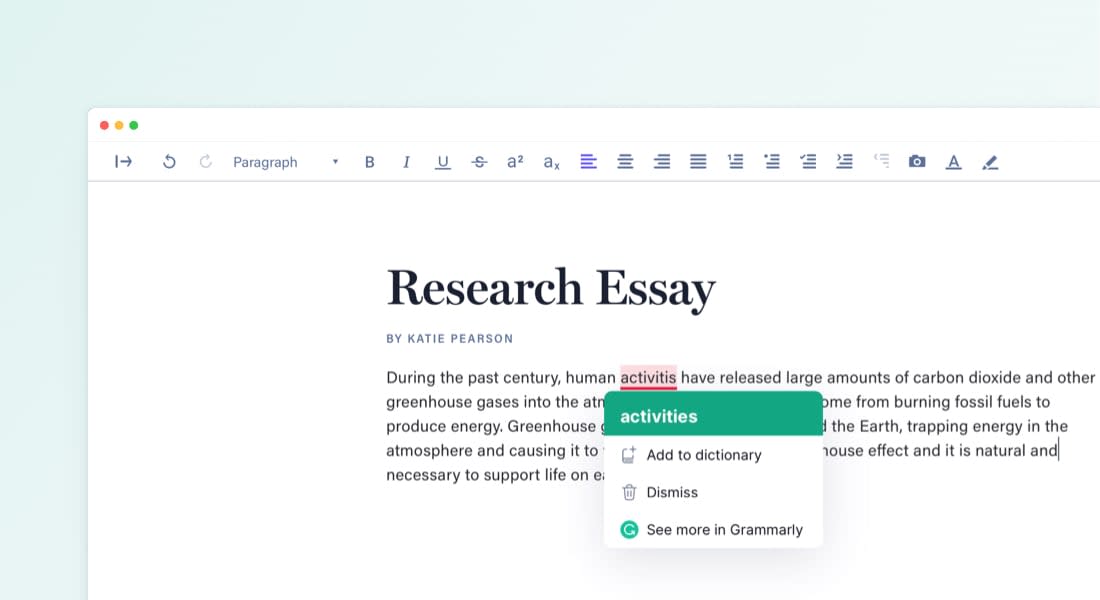 Try Grammarly for advanced spelling and grammar suggestions in Cadmus
2. Quick formatting using keyboard shortcuts
We've all struggled with our hands being unable to keep up with our thoughts during a flash of inspiration while writing. For students looking to save time and create a smooth working rhythm, the keyboard shortcuts available in Cadmus are exactly what they need. Students can switch between heading styles, lists and more with just a few clever keys.
⭐️ You'll find a full list of keyboard shortcuts here
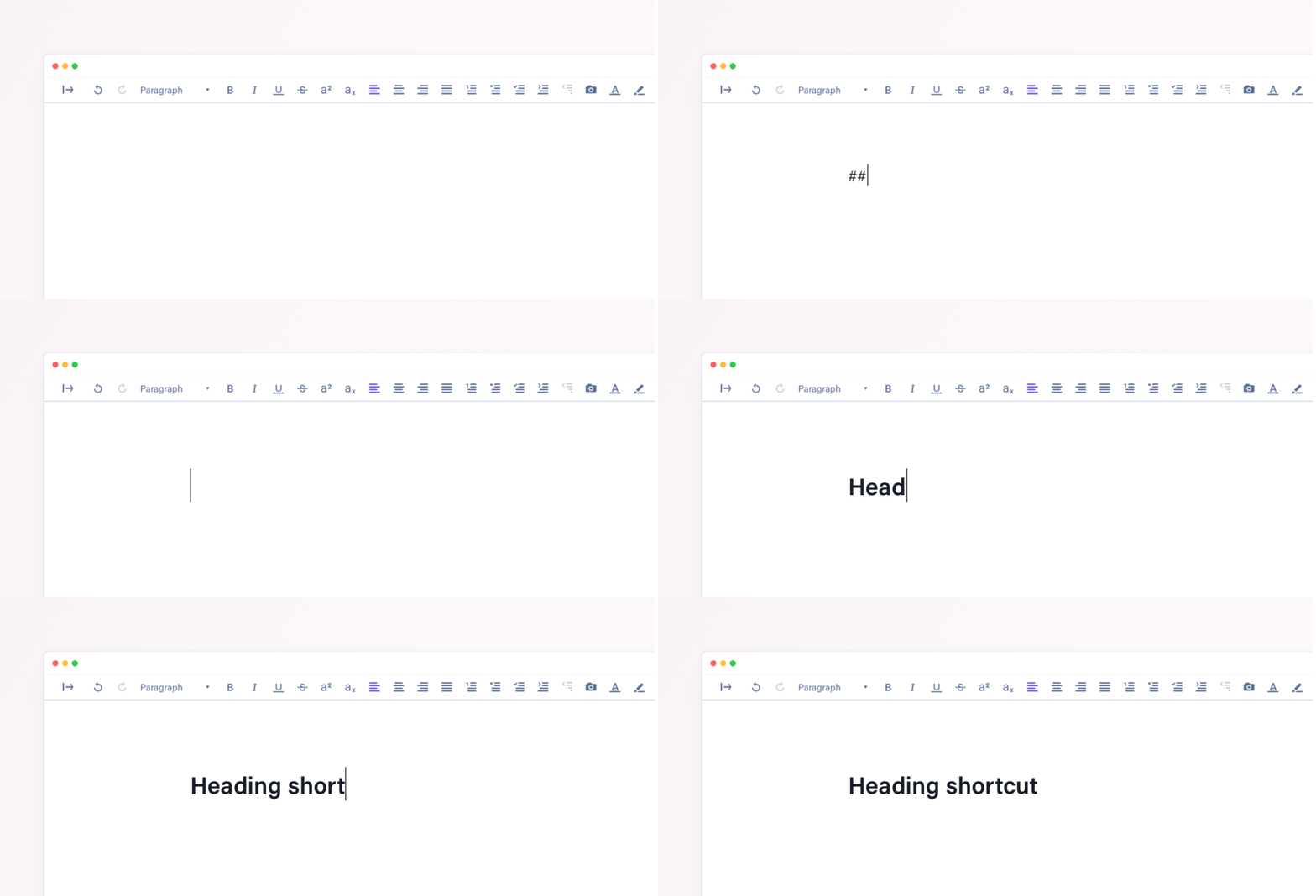
3. Manage word limits with this quick trick
We've seen plenty of assessments that require students to stick to specific word limits for sections or paragraphs, as well as an overall total word count. Here's a neat trick to help students track this in Cadmus: highlight a block of text to see the word count for the section in the top-right corner of the Work space.
⭐️ More info on checking word counts here
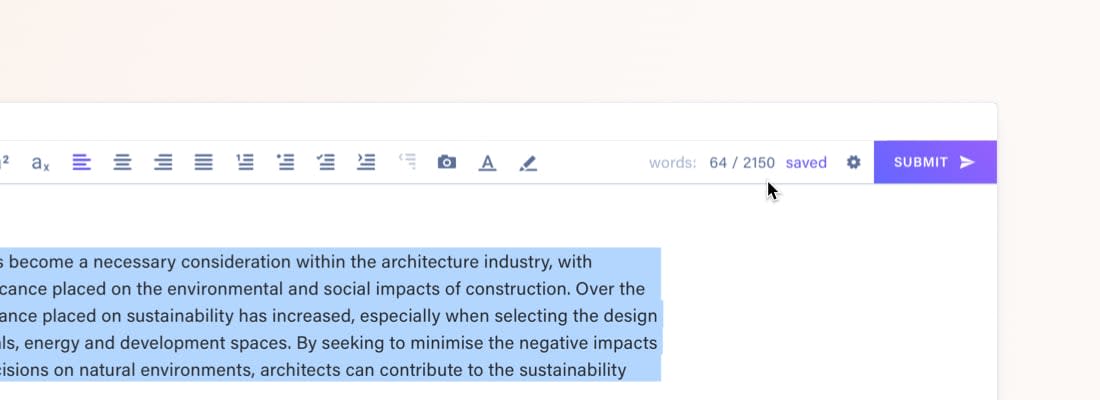
Simply highlight a section of text to check its wordcount
4. Stay organised with Notes
Another great tip for students is to utilise the designated Notes space. Since work in the Notes area doesn't get submitted through Cadmus, students can use it to collect research, plan, and collect their thoughts. For Instructions that include checklists, this is where students can copy them in and check off steps as they go.
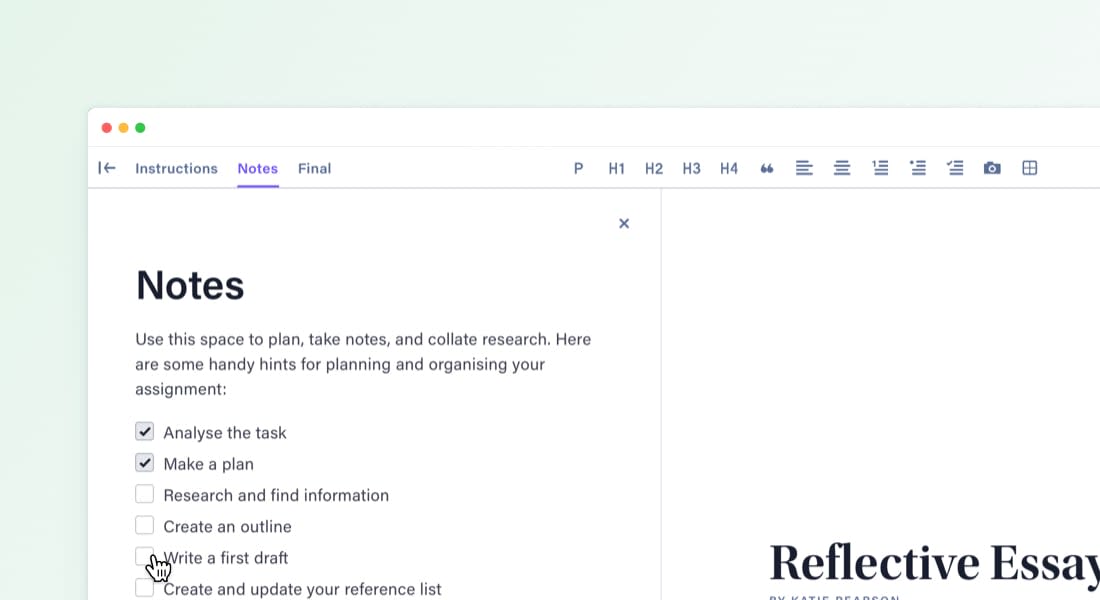
Use the Notes space in Cadmus to create checklists for planning
⭐️ Check out the different parts of the Student Environment in this quick video
5. Make the most of Cadmus Manual
Whether it's referencing help, tips on academic writing, or links to the library database — Cadmus Manual has it covered. This handy guide that lives in the Student Environment is a great place to start for students new to Cadmus. By getting a clear idea of the helpful resources available in-app before beginning, students will be able to refer back to these throughout their assignment.
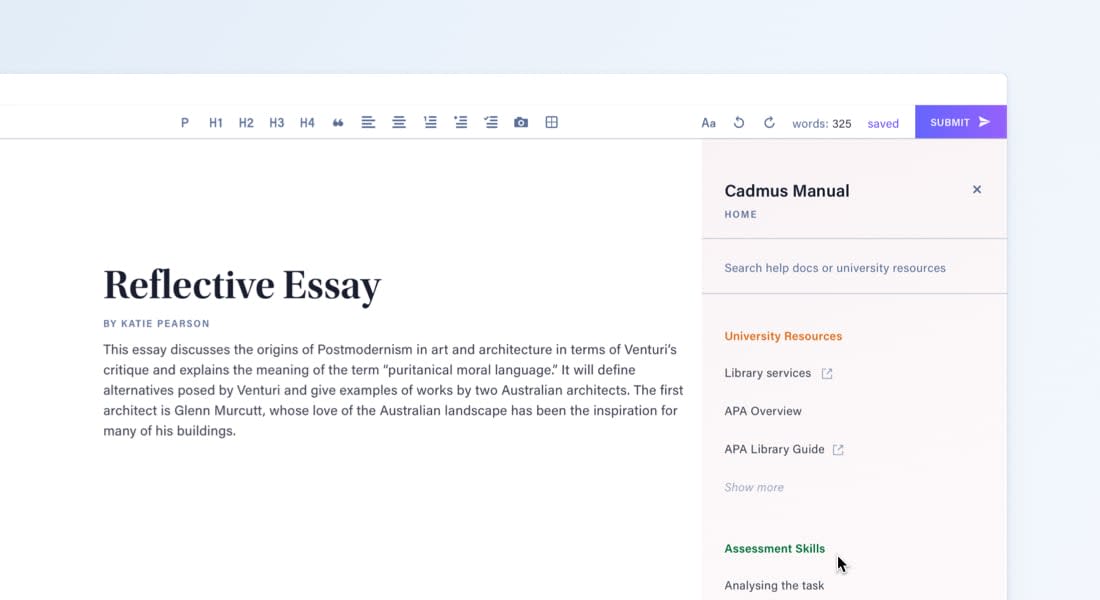
We're constantly adding new features to improve the experience for students. For more resources for students, check out our Getting Started videos and Help Docs.
Category
Product
More News
Load more


AI
Leadership
Why “AI-proofing” assessments misses the point—and what to design for instead
This article challenges the idea of “AI-proofing” assessment, arguing that restriction and detection strategies fail to address the real issue: assessment designs that no longer produce reliable evidence of student capability. Nick Bareham explores how universities can instead design assessments that make thinking, judgment, communication, and applied understanding visible—the very capabilities employers are increasingly demanding in an AI-enabled world.
Nick Bareham, Chief Growth Officer, Cadmus
2026-06-09


AI
Leadership
Why AI demands a redesign of assessment—not just a policy response
This article argues that AI has exposed a deeper structural weakness in higher education assessment: the reliance on outputs as proxies for genuine learning and capability. Brigitte Elliott explores why policy and detection tools alone cannot solve this challenge, and why institutions must redesign assessment to make student thinking, reasoning, and understanding visible.
Brigitte Elliott, Co-CEO, Cadmus
2026-05-26



AI
Leadership
The degree has always been a signal. AI is changing how we verify it.
This piece explores how AI has fundamentally disrupted the university degree as a trusted signal of capability, decoupling assessment outputs from genuine student understanding. Herk Kailis argues that institutions must move beyond AI detection tools, toward approaches that require students to demonstrate authentic understanding in real time.
Herk Kailis, Founder & Co-CEO, Cadmus
2026-05-11